

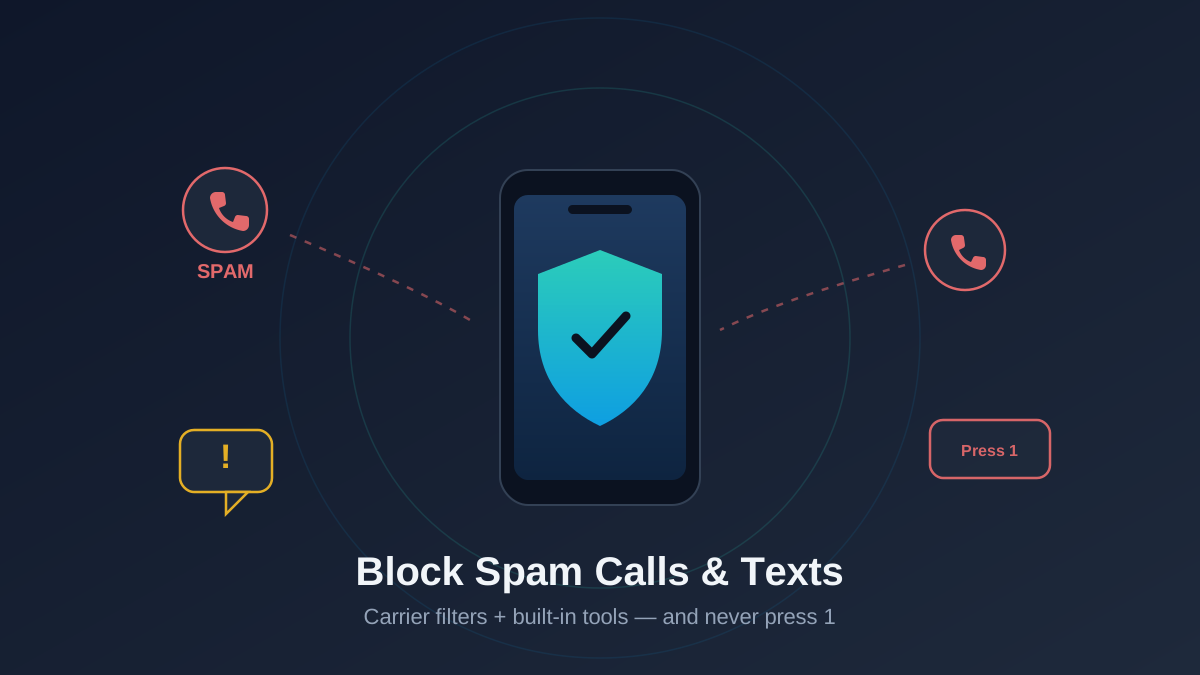
The fastest fix that actually works: turn on your carrier’s free spam-blocking app (Verizon Call Filter, AT&T ActiveArmor, or T-Mobile Scam Shield), then enable your phone’s built-in spam filter. If you still get hammered, switch on Silence Unknown Callers on iPhone or Caller ID & spam on Pixel/Android. And the single most important rule, no matter what: never press 1 to opt out of a robocall.
There is no magic button that ends spam forever. But you can stack three layers of defense that, together, take you from “my phone rings all day” to “I get one or two strays a month.” Here is exactly how to do it on both platforms, in the order that matters.
Why you can’t just block your way out of it
Blocking individual numbers feels productive, but it is a losing game. Spammers use caller ID spoofing to fake the number on your screen, often “neighbor spoofing” so the call looks like it shares your area code and prefix. The number you block today is gone tomorrow. That is why the strategies below focus on filtering by behavior and reputation rather than blocking one number at a time.
Spam texts work the same way. The link in a “your package couldn’t be delivered” message leads to a phishing page, and replying STOP just confirms a human reads that line. If you want the background on how those traps are built, our guide to spotting and avoiding phishing scams covers the tells worth memorizing.
The rule that matters most: never press 1
When a robocall says “Press 1 to be removed from our list,” do not press anything. Most of these calls are placed by autodialers blasting millions of numbers, many of them randomly generated. Pressing 1, saying “yes,” or even staying on the line tells the system that a real person with a working number is listening. Your number gets flagged as a confirmed live target and sold to other operations. The calls go up, not down.
The only correct response to a robocall is to hang up. Don’t talk, don’t press buttons, don’t engage. Silence is the win.
The same logic applies to spam texts: don’t reply, don’t tap links, and don’t use the “reply STOP” option unless the sender is a legitimate business you actually signed up with. For real merchants, STOP is honored by law. For scammers, it is just a heartbeat check.
Layer 1: Turn on your carrier’s spam tools (free)
Your carrier sees call patterns across millions of lines, so it can flag a number as spam before it ever reaches you. In the US, all three major carriers offer this for free, and it is the highest-leverage step.
- Verizon — Call Filter (free tier auto-detects and labels spam; the paid tier adds a lookup-by-name caller ID).
- AT&T — ActiveArmor (formerly Call Protect). The free version blocks known fraud calls automatically.
- T-Mobile / Metro — Scam Shield. Turn on “Scam Block” to auto-reject calls T-Mobile flags as scams; you can also dial #662# from your phone to enable it.
These run at the network level, which is the key advantage: a flagged call can be stopped or labeled before your phone even rings. Turn this on first, then layer the phone’s own filtering on top.
Layer 2: Built-in spam filtering on your phone
On Pixel and most Android phones
Google’s Phone app (default on Pixel and many Android devices) has solid filtering baked in. Open the Phone app, tap the three-dot menu, go to Settings > Caller ID & spam, and turn on both See caller and spam ID and Filter spam calls. With filtering on, suspected spam never rings; it goes straight to a separate spam folder in your call history. Pixel users also get Call Screen, which lets Google Assistant answer unknown calls and ask who’s calling so you can decide whether to pick up.
Samsung Galaxy phones use Samsung’s own dialer with “Smart Call” / spam protection powered by Hiya. You’ll find it under Phone > Settings > Caller ID and spam protection. If you’d rather use Google’s filtering, you can set the Google Phone app as your default dialer. Either way, the steps are the same idea. For more on locking down a Galaxy, see our Galaxy S26 Ultra review and broader smartphone privacy guide.
On iPhone
Apple’s spam handling is more bare-bones than Android’s, which is why carrier tools matter more on iOS. Out of the box, your carrier’s labeling will show “Spam Likely” on the screen if you’ve enabled their app. iOS itself relies on two features covered below: Silence Unknown Callers and filtering messages from unknown senders.
Layer 3: Silence Unknown Callers (the nuclear option that works)
This is the setting that quietly ends most people’s spam-call problem. When enabled, any number not in your contacts, recent outgoing calls, or Siri suggestions goes straight to voicemail without ringing. You still get the voicemail and a missed-call entry, so nothing is truly lost.
On iPhone: Settings > Apps > Phone > Silence Unknown Callers (on older iOS, it’s Settings > Phone). On Pixel, the equivalent lives under Phone > Settings > Caller ID & spam > Block calls from unidentified numbers.
The trade-off is real and you should weigh it: legitimate calls from numbers you don’t have saved — a delivery driver, a doctor’s office, a job recruiter, a return call from a business — will also go silent. If you’re job hunting, expecting a callback, or run a business, this may be too aggressive. The middle path: keep carrier filtering and built-in spam filtering on, and only flip Silence Unknown Callers during stretches when you’re not expecting unknown calls. I keep mine on permanently and just check voicemail; your tolerance may differ.
Killing spam texts
Texts need their own approach. The good news is both platforms can shunt messages from unknown senders into a separate inbox so they never buzz your main thread.
- iPhone: Settings > Apps > Messages > Filter Unknown Senders. This sorts texts from anyone not in your contacts into a separate tab and silences their notifications. You can also report iMessage spam by tapping “Report Junk” under the conversation.
- Android (Google Messages): Spam protection is on by default. Open a junk thread, tap the menu, and choose Block & report spam. Google’s filter learns from these reports across its user base.
- Report to 7726 (SPAM): On any US carrier, forward a spam text to the number 7726. Your carrier uses these reports to block the source.
For anything claiming to be your bank, a delivery service, or the IRS, treat the link as hostile by default. Open the company’s app or type its address yourself instead of tapping. Strong, unique passwords and two-factor authentication are your backstop for when a phishing text does slip through; a password manager makes both painless.
Step-by-step: lock it all down in 10 minutes
Step 1: Install and enable your carrier’s app
Download Verizon Call Filter, AT&T ActiveArmor, or T-Mobile Scam Shield from your app store and turn on automatic spam blocking. T-Mobile users can shortcut this by dialing #662# to enable Scam Block.
Step 2: Turn on built-in spam filtering
iPhone users get this through their carrier label automatically. Android users: open Phone > Settings > Caller ID & spam and enable both caller ID and spam filtering (or the Samsung equivalent under spam protection).
Step 3: Decide on Silence Unknown Callers
If you rarely need calls from unsaved numbers, enable it (iPhone: Settings > Apps > Phone; Pixel: block calls from unidentified numbers). If you’re expecting callbacks, leave it off and rely on the first two layers.
Step 4: Filter unknown text senders
iPhone: Settings > Apps > Messages > Filter Unknown Senders. Android: confirm spam protection is on in Google Messages settings.
Step 5: Register on the Do Not Call list and report the rest
In the US, add your number at donotcall.gov. It won’t stop scammers (who ignore it) but it gives you legal standing against legitimate telemarketers. Then forward spam texts to 7726 and report spam calls in your carrier app.
What about third-party blocking apps?
Apps like Hiya, Robokiller, and Truecaller can be effective, and some add features like answering bots that waste scammers’ time. But weigh the privacy cost: many of these apps want access to your contacts and call logs, and a few have historically uploaded address books to build their databases. Before installing one, ask whether the carrier and built-in tools already cover you — for most people they do, for free, without handing your contacts to a third party. If you do go this route, read the permissions carefully.
Frequently asked questions
Does blocking a number actually stop the calls?
For a real, persistent caller, yes. For robocallers and scammers, no — they spoof a new number for almost every call, so the one you block is already abandoned. That’s why behavior-based filtering (carrier tools, spam filters, Silence Unknown Callers) works far better than blocking numbers one at a time.
Why am I suddenly getting more spam calls?
Usually one of two things: your number leaked in a data breach, or you previously engaged with a robocall (pressed a key or said “yes”), which flagged you as a confirmed live line and got your number resold. There’s no way to claw it back, but the layered defenses here will catch most of the resulting calls.
Will Silence Unknown Callers make me miss important calls?
It can. Legitimate calls from numbers not in your contacts — a pharmacy, a recruiter, a contractor returning your call — go straight to voicemail. You still see the missed call and any message, so check voicemail periodically. If you’re actively expecting unknown calls, turn it off temporarily.
Is it safe to reply STOP to a spam text?
Only if it’s from a legitimate business you actually subscribed to — they’re legally required to honor it. For unsolicited texts from scammers, replying STOP just confirms your number is active and reaches a real person, so you’ll get more. Delete it, block the sender, and forward it to 7726 instead.
None of this requires a paid app or a new phone. Stack the three free layers, never press 1, and your phone goes back to being a phone.